The short answer: To set holiday hours on Google, open each location’s Business Profile, go to Edit profile, then Hours, then Special hours, pick the date and enter the hours or mark it closed. With more than a handful of locations, use the bulk spreadsheet’s Special hours column or a listings tool, set every holiday at least two weeks ahead, and then update the other platforms that keep their own copy of your hours. Confirm your hours even on holidays when nothing changes.
Why holiday hours matter more when you have several locations
One location showing “Open” on Christmas morning is an annoyance. Fifteen locations doing it is a wave of wasted trips, angry calls and one-star reviews that all land in the same week. The more locations you run, the more likely it is that at least one of them has the wrong hours on a holiday.
Google also flags the risk for customers. On public holidays, Google may show a warning on your Business Profile telling people that your hours might differ. A shopper who sees that warning on your listing and confirmed hours on a competitor’s has an easy choice to make.
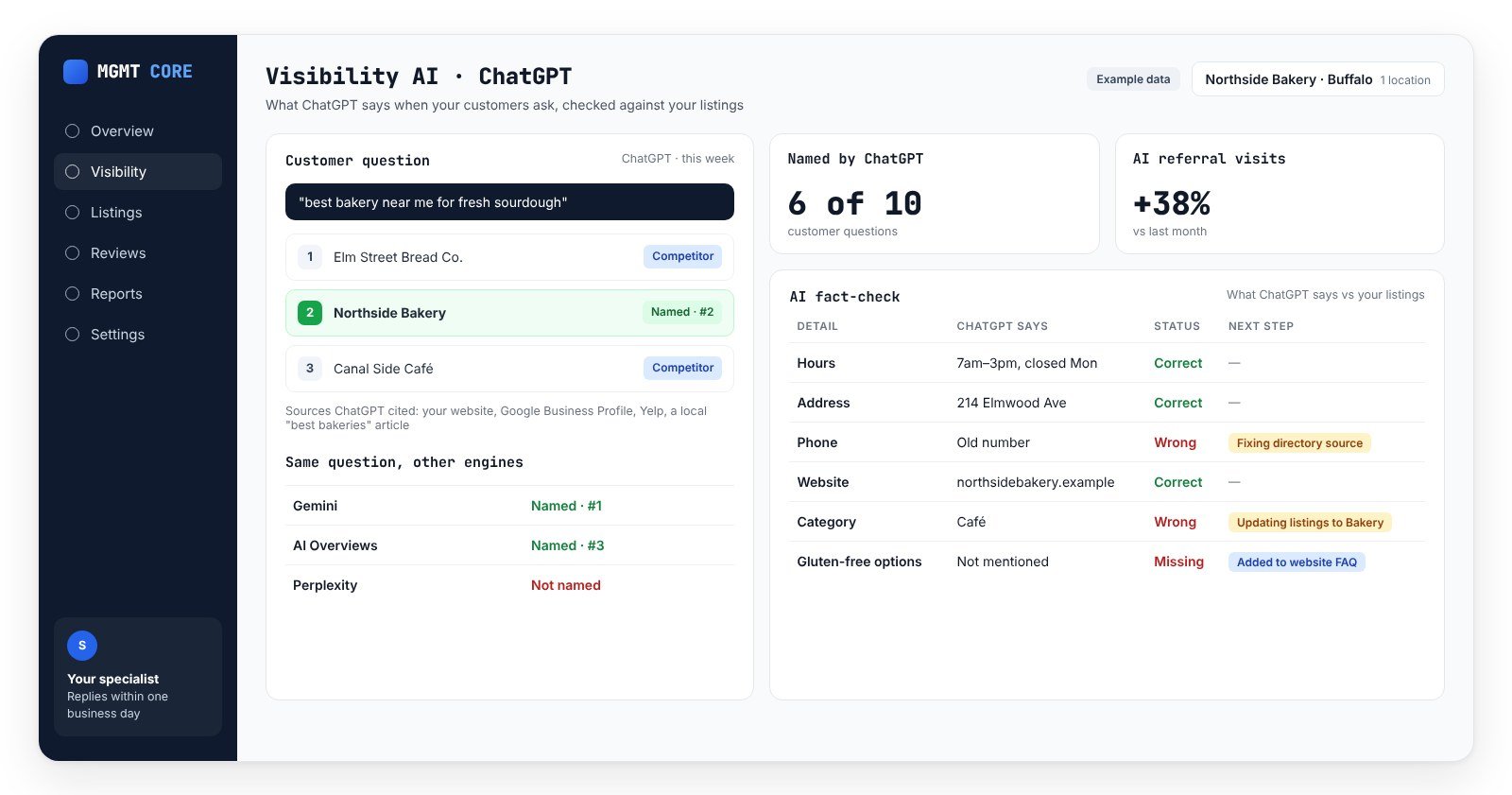
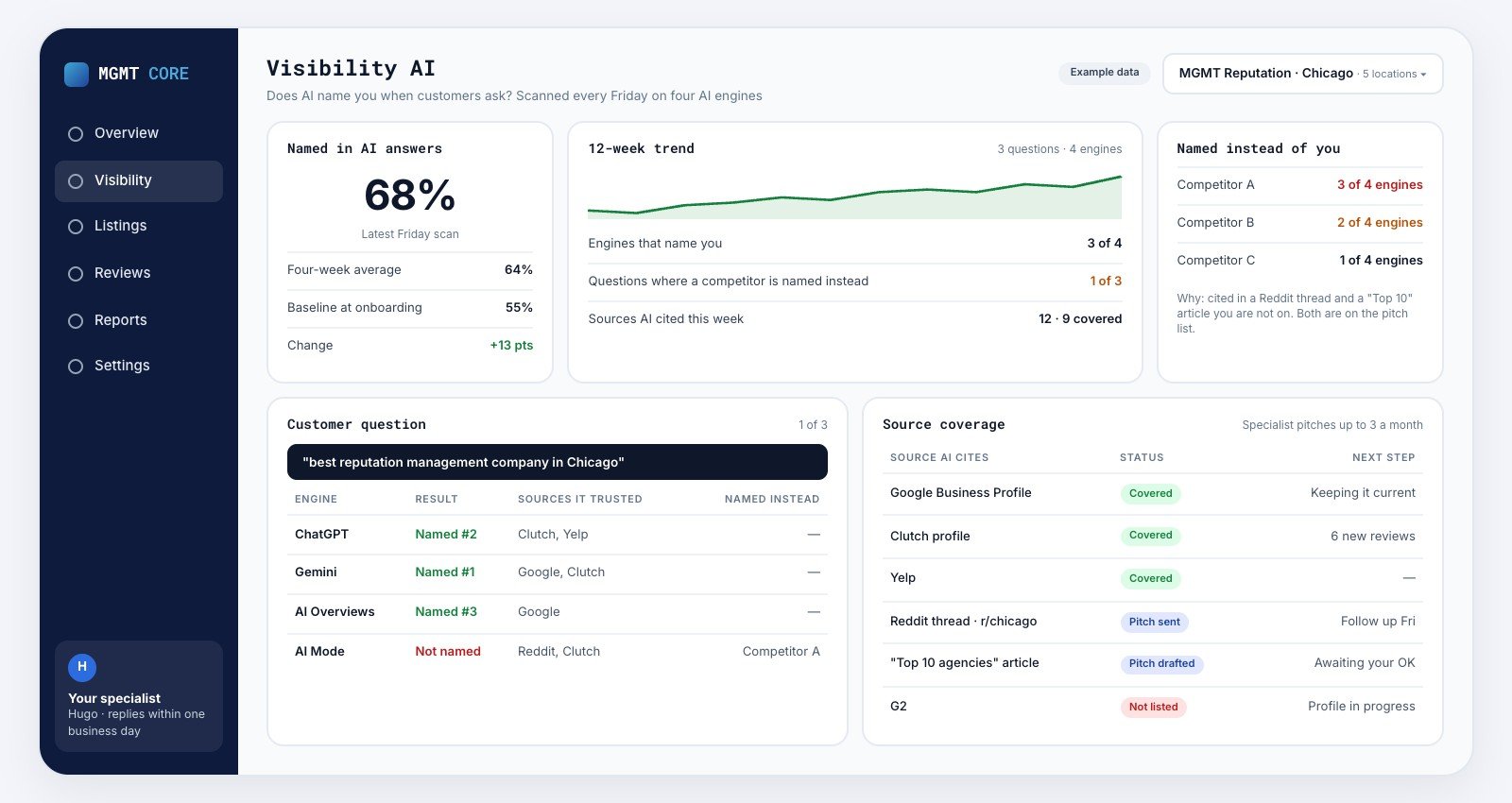
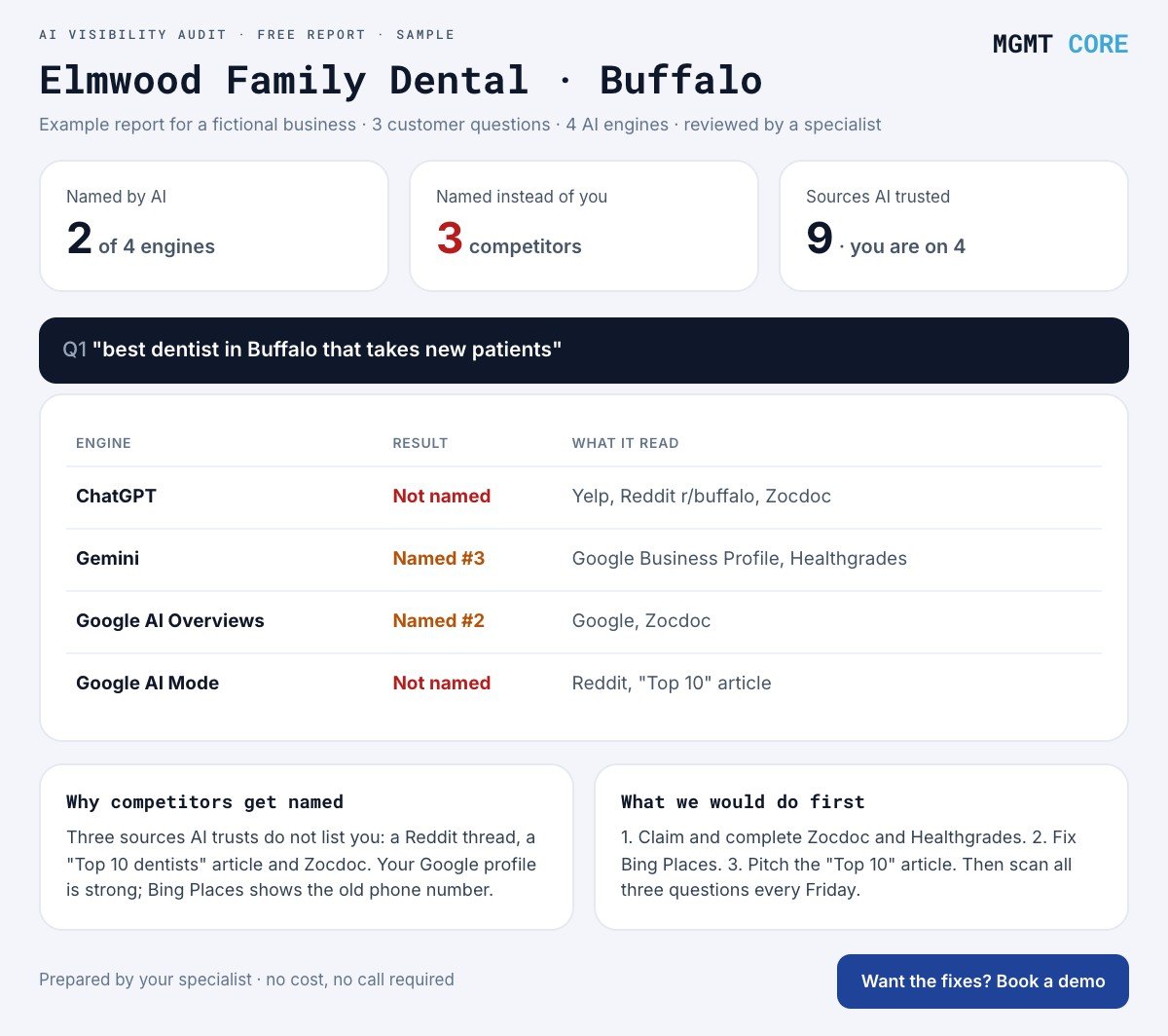
The same data now feeds AI answers. When someone asks an assistant whether your clinic or store is open on Thanksgiving, the answer is built from your listings and your website. If those disagree, the assistant can repeat the wrong version. Our guide to AI Overviews for local businesses explains how Google picks which details to show.
How to set holiday hours on Google for one location
These steps follow Google’s own help page on special hours:
- Open your Business Profile (search your business name on Google or Maps while signed in) and select Edit profile.
- Select Hours.
- Next to Special hours, select Edit.
- Pick a date. You can confirm a holiday Google suggests, add a custom date or edit one you set before.
- Leave Closed ticked if the location is shut, or untick it and enter the opening and closing times. For a split day, use More, then Add hours.
- Select Save.
Three rules catch people out. Special hours only show if your main hours are set to “Open with main hours”. A single set of hours cannot run past 24 hours, so overnight hours have to be split into two entries at midnight. And special hours are meant for closures of up to six days in a row; for seven days or more, Google asks you to mark the business as temporarily closed instead.
How to set holiday hours on Google for many locations at once
Editing profiles one by one works for three locations. It does not work for thirty. You have three realistic options:
- The bulk spreadsheet. Google’s bulk upload spreadsheet has a Special hours column. Dates go in YYYY-MM-DD format, an “x” marks an all-day closure, and multiple sets are separated by commas. For existing locations you can upload just the store code and special hours columns. Be careful: Google warns that empty columns, or columns with headings but no data, erase the existing information for those fields.
- Location groups with one owner. Keep every location in one business group so a single person can review all of them, instead of each manager or franchisee editing their own profile on their own schedule.
- A listings tool. Set the hours once and push them to Google and the other platforms from one place. This is the only option that also covers Apple Maps, Bing, Yelp, Facebook and the rest in the same step.
Whichever route you choose, Google is only one copy of your hours. Our multi-location listings checklist covers the other details that need to match everywhere.
Holiday hours checklist for multi-location businesses
Run this before every holiday season. It takes most of the stress out of late November and December.
| Step | When | What to check |
|---|---|---|
| 1. Build the holiday calendar | 6 to 8 weeks before | National, state and local holidays for every location, plus days that change hours without being official holidays |
| 2. Decide hours per location | 4 weeks before | Mall, airport and franchise locations often follow different hours from the rest |
| 3. Set special hours on Google | At least 2 weeks before | Every location, every date, including days where the hours stay the same |
| 4. Update the other platforms | Same day as step 3 | Apple Maps, Bing, Yelp, Facebook and any industry directories you use |
| 5. Update your own website | Same day as step 3 | Location pages, booking system, chat replies and phone message |
| 6. Spot-check | 1 week before | Open 3 to 5 random locations on Google Maps and ask an AI assistant whether they are open |
| 7. Review afterwards | After the holiday | Remove website banners and note any location that showed the wrong hours |
Holidays multi-location brands often miss
Christmas and New Year’s Day rarely get forgotten. These do:
- Eves. Christmas Eve and New Year’s Eve often mean early closing, not a full closure, which is easy to skip.
- Observed holidays. When a holiday falls on a weekend, many businesses close on the Friday or Monday instead.
- State and local holidays. Google’s holiday list includes state holidays such as Patriots’ Day in Massachusetts and Maine. A chain that sets hours centrally can miss these for the locations they affect.
- Shopping days. Black Friday and the days before Christmas often mean longer hours. Longer hours are special hours too.
- Local events. Parades, marathons and weather closures change hours for a single location. Special hours handle these as well.
Common mistakes with holiday hours
- Changing the regular hours instead. Then someone has to remember to change them back, and often nobody does.
- Updating Google only. Apple Maps, Bing and Yelp keep showing the old hours, and some AI assistants read from them.
- Not confirming unchanged hours. Google suggests confirming your hours on official holidays even when they stay the same, so customers know they are accurate.
- Uploading a spreadsheet with empty columns. This can wipe fields you meant to leave alone.
- Letting each manager edit their own profile. You end up with five formats and no single view of what customers actually see.
What holiday hours can and cannot do
Setting holiday hours on Google tells customers what to expect, but it does not control everything. Google decides when to show its holiday warning. Other platforms update on their own schedules, and not every directory has a special-hours field. AI assistants can lag behind your listings, which is why a wrong answer sometimes survives for a while after you fix the source. If that happens, our guide on fixing wrong information about your business walks through the steps. Setting hours early is the best protection there is.
How MGMT Core handles holiday hours
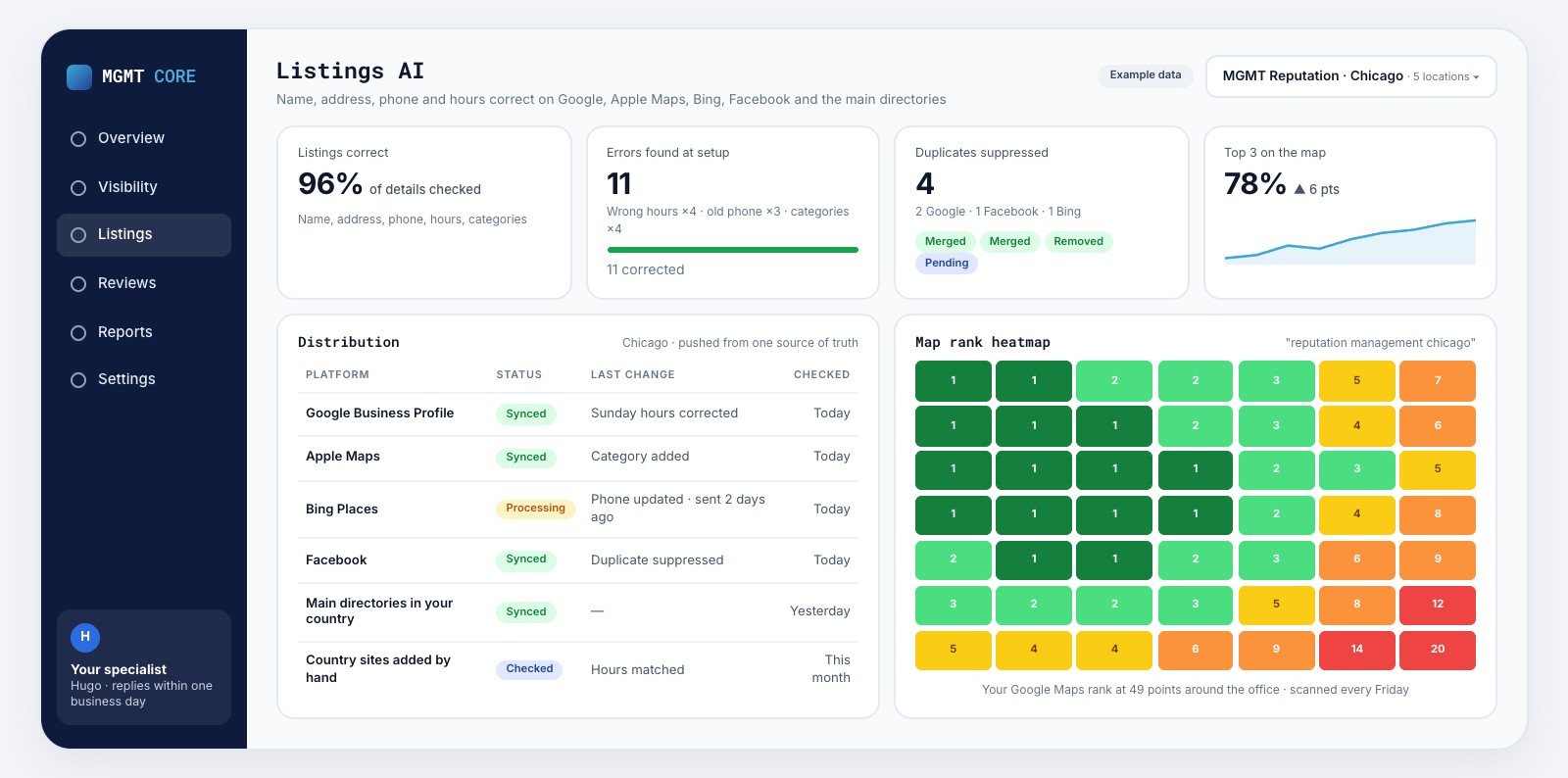
With Listings AI, your named specialist sets special hours ahead of each holiday for every location and pushes them from one place to Google, Apple Maps, Bing, Facebook and the main directories in your country, where the publisher supports it (availability depends on country and business type). Accuracy is tracked per location and covered in your Friday report and monthly 30-minute call. It costs $400 per location per month with no contract; see pricing.
FAQs
How far in advance can I set holiday hours on Google?
Google’s help page does not state a limit. Setting them two to four weeks ahead gives Google, the other platforms and AI assistants time to pick up the change.
Do I need to set special hours if my hours do not change?
It helps. Google suggests confirming your hours for official holidays even when they are the same as usual, so customers can trust them.
What if a location closes for more than a week?
Special hours cover closures of up to six days in a row. For seven days or more, mark the location as temporarily closed instead.
Can I set holiday hours for all my locations at once?
Yes, through the Special hours column in Google’s bulk upload spreadsheet, or with a listings tool that also updates the other platforms in the same step.
Want every location’s hours, address and phone checked before the holidays? Book a demo and we will walk through your listings with you.